ChatGPT now has its own Search Console


On November 10, 2026, OpenAI launched Businesses in ChatGPT in beta, a program for companies inside ChatGPT. In the Business Hub dashboard, a company can claim its listing, upload a product feed and, for the first time, see data from the platform itself: how many times ChatGPT mentions it and how many clicks it sends to the website. Before this, traffic from ChatGPT could only be estimated through third-party tools and referrers in analytics. So online stores, online services and sites targeting international markets now have their first baseline. Below I walk through how to pass both checks, how to read the numbers, where a claim can backfire, and what to do if you can't claim your listing.
What OpenAI launched on November 10, 2026 and where to find Business Hub
OpenAI calls Businesses in ChatGPT a new way to reach the 1.2 billion people who use ChatGPT every week. It isn't a separate service but a section inside ChatGPT. The dashboard is called Business Hub and opens at chatgpt.com/business-hub or from the ChatGPT sidebar.
A free ChatGPT account is enough to get in. You don't need an ad account. You don't need a ChatGPT Enterprise contract (OpenAI's corporate subscription for companies) either. The barrier to entry is zero, and that matters for the traps section below: anyone can try to claim your brand's listing.
What's inside Business Hub:
- the company listing: website, description, category, logo, shipping and return terms, cover image;
- the product feed, a file with your products, prices and stock status;
- mention and click statistics for 7 and 28 days;
- Business Agent, the company's agent inside ChatGPT that answers users on its behalf. For now it's only available to ecommerce businesses and online services in the US.
OpenAI updated the program terms, the Businesses in ChatGPT Terms, on November 9, 2026, the day before launch. At launch, Business Hub and Business Agents are free, but in those same terms OpenAI doesn't rule out charging for them later.
What existed before Business Hub and what changed in ChatGPT data
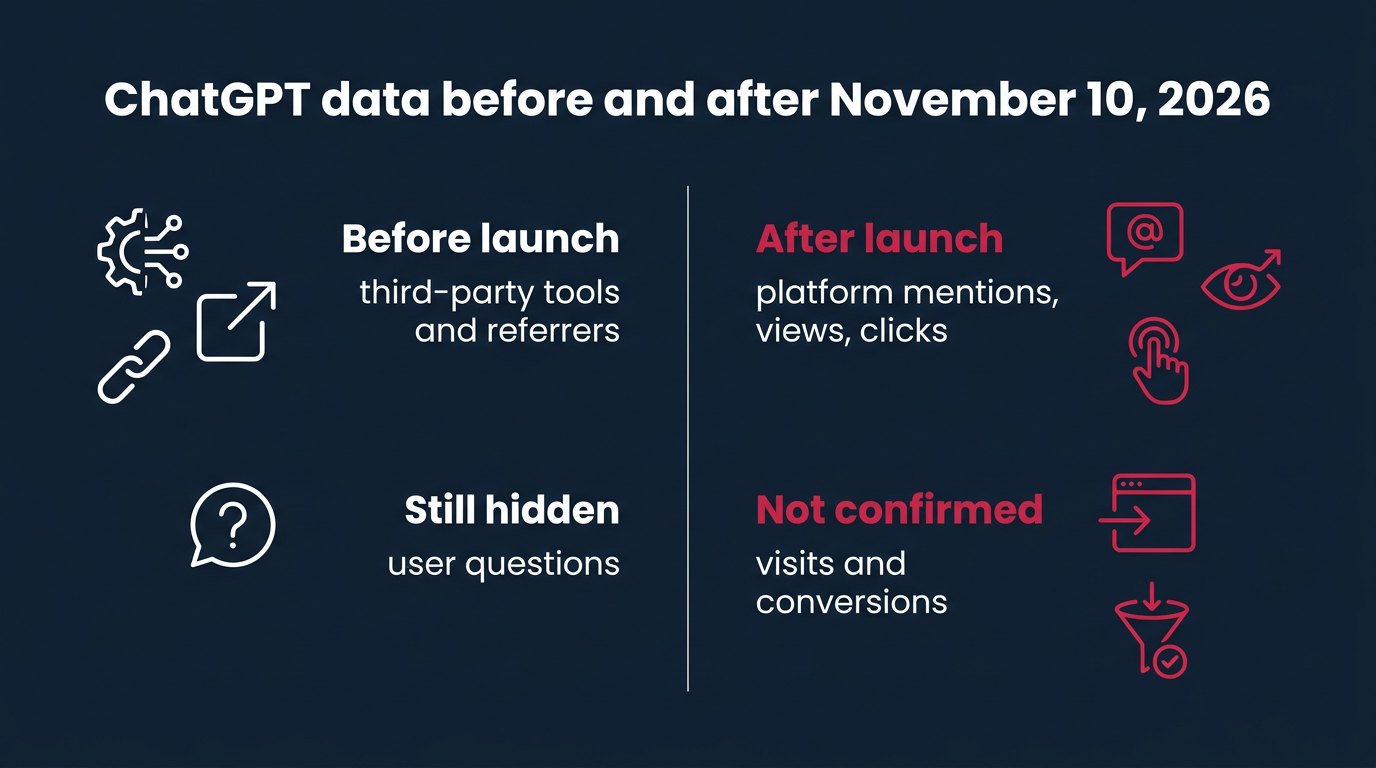
Until November 10, 2026, brands and agencies had no first-party platform data on ChatGPT's free answers, meaning answers without ads. Visibility was estimated in 2 ways. Third-party tools asked ChatGPT a prepared set of questions and counted how often the brand came up. Web analytics showed visits from the chatgpt.com domain. The first approach gave you a sample of someone else's questions; the second showed only the people who actually reached your site.
Now Business Hub has the platform's own numbers: mentions, profile views and clicks to the website. In essence, it's the first equivalent of Search Console, only for ChatGPT. But 2 limitations remain, and you need to keep them in mind with every report:
- the prompts, meaning users' questions, behind the mentions are still hidden. Search Console has a queries report; this doesn't. There's only a top 5 topics list;
- a click in Business Hub doesn't equal a confirmed visit. Someone clicked the link, but whether they reached the site and what they did there, the dashboard doesn't know.
Who Business Hub affects, and who it doesn't yet
The launch mainly matters for those who sell or operate through a website and get, or want to get, traffic from ChatGPT:
- online stores, especially with a product catalog: they get the feed and mentions via links;
- online services: SaaS, subscriptions, online courses, anything where the purchase happens on the website;
- sites targeting international markets, since ChatGPT's audience is spread across many countries;
- agencies managing clients like these: they need access to the listings and consistent numbers for reports.
Local businesses have it harder. Stores with physical locations and restaurants can, for now, only claim an existing listing in the US. Business Agents are only available to ecommerce businesses and online services in the US. You can claim the listing itself anywhere ChatGPT is available, but OpenAI doesn't publish a list of countries.
Who gets nothing from a listing in its current form: sites that block OAI-SearchBot, OpenAI's search crawler. Those sites don't appear in ChatGPT's search answers, and a claim won't fix that. robots.txt first, Business Hub second.
How to read Brand insights: mentions, views, clicks
Statistics live in 2 tabs. Brand insights shows how ChatGPT talks about the company in its answers. Agent insights shows how the Business Agent is performing, if you have one. There are 2 periods: 7 and 28 days.
Brand insights has 3 tiles: mentions, profile views and website clicks. Below them are a mentions chart and the top 5 topics where the company came up. The topics stand in for the queries report that doesn't exist.
What counts as a mention depends on the type of business:
- online business: ChatGPT has to link to the company's website. If ChatGPT names the brand without a link, it doesn't count as a mention;
- local business: showing a result for the location counts, even if the person didn't open the listing.
The dashboard describes clicks in a tooltip: this is the number of recorded clicks on links to your website, and they don't confirm visits or conversions. An empty metric doesn't necessarily mean zero: activity may not have reached the threshold, or data may still be coming in. Don't write off an empty tile in the first week as a failure.
Worked example: how many clicks a ChatGPT mention brings
On the first live dashboards, roughly 3.5% of mentions turned into a click. In OpenAI's demo the ratio was about 35%, 10 times higher. Search Engine Journal, a major search industry publication, logged 353,356 mentions and 2,663 clicks from October 14 to November 10, 2026.
I recalculated SEJ's ratio: 2,663 divided by 353,356 is 0.75%. That's 4.7 times below the 3.5% benchmark and about 47 times below the demo. Now the same thing on a hypothetical 10,000 mentions over 28 days:
- at 35%, as in the demo: 3,500 clicks;
- at 3.5%, as on the first dashboards: 350 clicks;
- at 0.75%, as at SEJ: 75 clicks.
The spread is huge, and it makes sense. ChatGPT answers the question right in the chat window. Someone who got a complete answer considers the task done and only goes to the website when they need to take an action: buy, book, check a price. For a publication like SEJ, most questions are informational, and the answer covers them fully. For a store, the share of action questions is higher, and clicks per mention may be higher too.
What I'd do myself: for the first 28 days, I wouldn't set any targets based on these numbers. I'd capture the baseline for the 3 tiles and the topics list, log it in a spreadsheet with the date, and compare the next 28 days against that point, not against the 35% from the demo. The demo shows how pretty it can look; SEJ's 0.75% shows how differently it plays out on a real site.
How to claim a listing in Business Hub: step by step
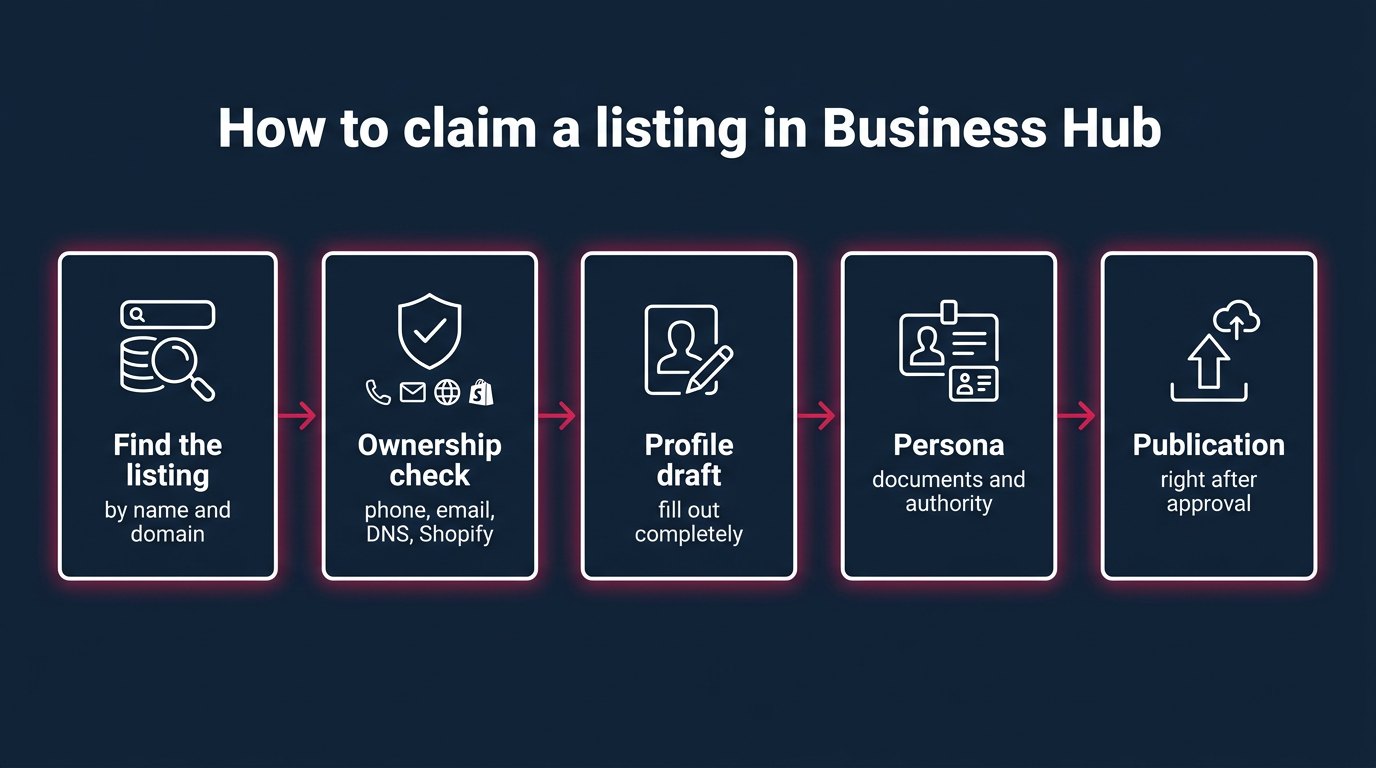
A claim involves 2 checks. First, business ownership verification; then identity and authority verification through Persona, the document verification service OpenAI works with. Until Persona approves the claim, you can't publish changes, connect a feed, view statistics or create an agent.
What to prepare before you start:
- a ChatGPT account the company will still have access to after a particular employee leaves;
- an ID document for the person submitting the claim;
- the company's registration details: exact name, address, registration or tax number, exactly as in official records;
- proof of authority: that this person is entitled to act on behalf of the company;
- access to the domain's DNS, the company email or the company phone;
- finished copy for the listing: description, category, shipping and return terms, logo, cover image.
Steps:
- Open chatgpt.com/business-hub or Business Hub in the ChatGPT sidebar.
- Search for your company by name. Check the domain and address in the listing you find so you don't claim a namesake.
- Pick an ownership verification method from the ones the dashboard offers.
- Complete the verification: for phone, choose SMS or an automated call and click Get code; for email, enter the code sent to the company address; for domain, add a TXT record to DNS.
- Fill out the profile draft completely before submitting to Persona.
- Complete Persona: upload your ID, registration details and proof of authority.
- Wait for the decision. Once approved, a blue checkmark appears and the profile publishes itself.
- Open Brand insights, choose the 28 day period and save the baseline numbers.
There are 4 ways to verify ownership, but Business Hub only shows the ones supported for that particular listing. So you may not see all 4.
| Method | How it works | What it depends on |
|---|---|---|
| Business phone | SMS or call, then Get code | company phone |
| Business email | code sent to company email | corporate inbox |
| Website domain | TXT record in DNS | domain access |
| Shopify | through your Shopify store | Shopify account |
I'd choose Website domain if it's available. A TXT record ties the claim to the domain, which is the same site the links in mentions point to. Phone and email are tied to people and inboxes that change: an employee leaves, a number gets reassigned. Shopify is convenient if your store is already on Shopify, but that's verification through the platform, not through your domain.
Business Hub traps: auto publishing, someone else's listing, brands and locations
Trap 1, the main one: a new profile publishes automatically right after Persona approval. There's no separate publish step. OpenAI support cannot delete, unpublish or hide a published profile. Only a draft can be deleted.
Hence the rule: the draft has to be in final shape before you submit to Persona. Description, category, shipping and return terms proofread, logo and cover image in the right format. If you submit an empty draft "just to hold the spot", after approval that empty listing ends up in ChatGPT and you can't roll it back, only edit it. And OpenAI reviews edits before publishing, so they don't appear right away.
Trap 2: mismatched data. The name, address and registration or tax number in the claim must match official records. A short name instead of the full legal name, an old office address, the number of a different company in your group: any mismatch like this risks stalling the review.
Trap 3: the blue checkmark. It appears after Persona approval, not after you submit. If an agency client asks why there's no checkmark an hour after the claim, the answer is: the review hasn't gone through yet.
Trap 4: brands and locations are managed separately. There's no unified management of multiple brands and locations, and a claim on the main brand doesn't cover its locations. An agency with 5 clients will need 5 claims; a store chain will need to claim every location.
Why there's no Publish agent button in Business Hub
The Publish agent button publishes the Business Agent, the company's agent that answers ChatGPT users on its behalf. It's the button people most often look for and can't find. There are 2 reasons, and they're different.
Reason 1: the claim hasn't been approved by Persona yet. Before approval you can't create an agent at all, just as you can't connect a feed or open statistics. If ownership verification is done but Persona is still reviewing, there won't be a button, and that's not a dashboard bug.
Reason 2: business type and country. Business Agents are only available to ecommerce businesses and online services in the US. Local businesses, meaning stores with locations and restaurants, won't get a Publish agent button. A company outside the US won't get it either, even after Persona approval. If you're not in the US, the missing button reflects a program limitation, not a problem with your claim.
Waitlist for stores and restaurants with physical locations
Physical locations, meaning stores, restaurants and any business with an address people visit, can for now only claim an existing listing in the US. If the location doesn't have a listing in ChatGPT yet, or it's outside the US, the claim isn't rejected; it goes onto a waitlist.
Each location is claimed separately. A claim on the main brand doesn't cover it: if a chain claims its brand listing, its café on a specific street stays unclaimed. A chain with 10 locations needs 10 separate claims, each with its own queue.
If someone else has already claimed your listing:
- Open the company profile in ChatGPT.
- Click the menu (•••).
- Choose Dispute ownership.
- Prove your authority through Persona with the same documents as a regular claim.
The Business Hub product feed: 48 fields, 9 required, and tied to the US
The product feed in Business Hub is a file listing your products that ChatGPT uses to show the store's range. You can connect it in 3 ways: from Shopify, by uploading a CSV per OpenAI's spec, or via a link to a feed file hosted on your server.
The spec has 48 fields, 9 of them required. The other 39 are optional, but every field you fill in gives ChatGPT more data about the product. Standard feed upload is currently designed for the US, so for a store without a US market the feed is more of a groundwork investment for now.
If your feed for Google Merchant Center (Google's product ads dashboard) or for marketplaces is already generated by a script, it makes more sense to use it as the base and add fields per OpenAI's spec than to maintain a third catalog by hand. Check the price and availability format separately: errors there are the most common in any feed, and in a ChatGPT answer a wrong price is worse than a missing product.
A file link is more convenient than a manual CSV upload: the file updates on the server, and you don't have to log into the dashboard every time. But the feed only connects after Persona approval, so checks first, catalog second.
Worked example: a ChatGPT feed from a Merchant Center export
According to the product feed spec in OpenAI's developer documentation, every row includes 9 required fields from the Basic product data block, and OpenAI's minimal example consists of exactly those: item_id (SKU), title (name), description (description), url (product page), brand (brand), seller_name (seller name), image_url (photo), price (price) and availability (stock status). Those are the ones to cover first; the remaining 39 can be added as you go.
Most stores already have a base to build from: the Merchant Center feed. There, the core fields are named: id (SKU), title (name), description (description), link (product page link), image_link (photo link), price (price), availability (stock status), brand (brand). Per OpenAI's spec, id becomes item_id, and OpenAI accepts id and sku as aliases for item_id. link becomes url, image_link becomes image_url, while title, description, price, availability and brand keep the same names. Of the 9 required fields, only seller_name is missing from Merchant Center, and OpenAI's format requires seller_name in every row. There's also a second route: OpenAI describes a Google compatible feed format in which every row must have id, title, description, link, image_link, availability, price and brand filled in, but you can only use it after OpenAI approves it for your registered feed.
How to build the feed with a script, step by step:
- Export your current Merchant Center feed to CSV or take the spreadsheet it's generated from.
- Rename the columns per OpenAI's spec and add the required fields Merchant Center doesn't have.
- Format the price as "number, space, currency code":
79.99 USD, no $ sign and no space inside the number. - Normalize availability to a single value from the spec's list, for example
in_stock, not "available" or "in stock". - Check that the
linkandimage_linkURLs open and point to the domain you verified in Business Hub. - Save the file in UTF-8 and host it at a permanent URL on your server so the script overwrites it on a schedule.
A sample CSV row in Merchant Center format, hypothetical product:
SKU-1042,"City backpack 20 L","Water-repellent fabric, 15-inch laptop compartment",https://example.com/backpack-1042,https://example.com/img/1042.jpg,79.99 USD,in_stock,ExampleBrand
This shows exactly what to check: the price is written as 79.99 USD, a number with a decimal point and the currency code after a space, and availability as in_stock. In OpenAI's spec, the price is written as an amount followed by a 3 letter currency code; OpenAI's own example uses 18.00 USD, and according to Flavio Copes's breakdown you need 2 decimal places and no thousands separator. Valid availability values are in_stock, out_of_stock, pre_order, backorder or unknown, and a missing, empty or unrecognized value rejects the row. Price and in_stock match the Merchant Center format; only preorder differs: in the Google compatible format you write preorder, not pre_order as in OpenAI's native format, and unknown isn't accepted there at all. So for price and availability the script usually only needs to rename columns, and a transformation step is needed for preorder and for the seller_name field.
Before the first upload of any feed, I run it through a simple spreadsheet check: filter the price column for anything that doesn't end in a currency code, and filter availability for anything other than the valid values. I usually find 2 or 3 rows that would otherwise have surfaced in an answer with the wrong price.
How to claim a listing if your company isn't in the US
English language guides are silent here, and it's the most common question from my readers. OpenAI says you can claim a listing anywhere ChatGPT is available, but doesn't publish a list of countries. What decides the outcome isn't where you open the dashboard from, but the Persona check: it matches the company's name, address and number against official records.
Hence a practical order for sites targeting international markets:
- if the business has a legal entity abroad, claim the listing under that entity: its name, its address, its registration number;
- verify ownership through something that belongs to that entity: the website domain, a corporate email on that domain, the company phone;
- prepare the proof of authority for the person submitting the claim on behalf of that entity.
If your legal entity is in a country where ChatGPT availability or Persona's acceptance of local documents is uncertain, nobody can predict the outcome in advance, so my honest advice is this: fill out the draft completely and pass ownership verification, since you lose nothing. A draft can be deleted; the rules explicitly allow it. A published profile can't be deleted, but it only appears after Persona approval.
What a claim from India showed
The author of the gauravtiwari blog tested a claim in practice with a company from India, so not from the US. The start went the same as for US companies: the dashboard opened, the profile draft was created, the listing fields could be filled in.
Everything stopped at Persona approval. There's a draft, but no "approved" status. Without that status, as with any other company, publishing changes, the feed, statistics and the agent are all unavailable.
The takeaway for a claim from outside the US: the country doesn't stop you from starting; the draft and ownership verification work. There's a single bottleneck, Persona, so put your effort into the documents: full name, address and number exactly as in the registry, and proof of authority for the person submitting. And from approval, expect a listing and statistics, not an agent and a feed: Business Agents and standard feed upload will still be US only.
How to reconcile Business Hub clicks with GA4
The first thing you'll want to do after capturing the baseline is compare clicks from Brand insights with visits in your own analytics. It's worth doing, but expect the numbers not to match.
Where to find visits from ChatGPT:
- Google Analytics 4: Reports, Acquisition, Traffic acquisition. Choose the "Session source/medium" dimension and find chatgpt.com.
- In other analytics tools, look in the referral or source report for the chatgpt.com domain.
- In every case, set the same 28 days as in Business Hub, matched to the day.
Why the numbers will diverge, and why analytics will almost always show fewer:
- a click in Business Hub is a tap on a link, not a page load. The person may have closed the tab before the tracking code fired;
- GA4 and similar trackers get blocked by extensions and by cookie refusals;
- some visits may arrive without source data and land in direct traffic;
- Business Hub counts clicks by its own logic and doesn't confirm visits, while GA4 and other tools count visits and sessions by theirs.
For these reconciliations I keep a simple spreadsheet with columns: "period", "mentions", "profile views", "Business Hub clicks", "GA4 sessions", "visits in other analytics", "arrival rate". I calculate the last column as sessions divided by clicks. What matters isn't the exact figure but how it changes from period to period: if the arrival rate drops sharply, the problem is on the site, not in ChatGPT.
The point of reconciling isn't to get a match, but to see both ends of the funnel. Business Hub shows the top: how many times ChatGPT sent someone to you. GA4 shows the bottom: how many arrived and what they bought.
If you can't claim: how to influence the listing OpenAI built on its own
Under the November 9, 2026 terms, OpenAI can create and show a business listing based on its own data, whether you claim it or not. So skipping the claim doesn't remove your company from ChatGPT; it only removes your control over the listing and your statistics.
If you can't claim the listing, what's left is influencing the sources ChatGPT uses to build its picture of the company. I'd check in this order:
- robots.txt: OAI-SearchBot must not be blocked, otherwise the site doesn't appear in ChatGPT's search answers.
- The "About" page: full company name, what you do, who for, which countries you operate in.
- Contacts: the same name, address and phone on the site and in every external company profile.
- Separate pages with shipping and return terms that are readable without JavaScript.
- Category and product pages with clear headings, prices and availability.
Then check what ChatGPT says about the brand. Ask it 5 to 10 questions a customer would ask: "what is this company", "where can I buy it", "do they ship to such and such country", "how is it different from a competitor". Save the answers with a date and compare them 28 days after your changes. It's no substitute for Business Hub statistics, but it shows which facts about the company ChatGPT gets wrong.
What a claim doesn't give you, and what stops working
A claim doesn't raise your ranking. OpenAI says so directly: a claim doesn't guarantee increased visibility and doesn't let you control ChatGPT's independent recommendations. Ads don't affect independent answers either. The listing gives you control over your company data and statistics, not a spot in the answer.
What this means for day to day work:
- promising a client "we'll claim your listing and ChatGPT will start recommending you" doesn't hold up; no such mechanism exists;
- measuring visibility only through third-party tools with their sampled questions is no longer enough either: the platform has its own numbers, and a report without them looks incomplete;
- you can't treat Business Hub clicks as visits or sales; the tooltip in the dashboard says exactly the opposite;
- blocking OAI-SearchBot "just in case" while expecting traffic from ChatGPT won't work.
My position: almost everyone who can pass both checks should claim their listing, but for protection, not growth. The barrier to entry is zero, OpenAI can show a listing without you, and disputing someone else's claim through Dispute ownership takes longer than filing your own. The defensive argument is stronger than any promise of traffic.
Where Business Hub is heading
- The link to ads. A company can already sponsor its Business Agent and make it the landing point for ChatGPT Ads, advertising in ChatGPT. This continues the test OpenAI announced on September 16, 2026. The logic is clear: first a free listing and statistics, then paid promotion that leads to the same listing.
- Fees. At launch Business Hub is free, but OpenAI doesn't rule out charging later. If that happens, those who claimed their listing early will have several months of data history to decide whether paying is worth it. Everyone else will have an empty dashboard.
- Rising data requirements. A 48 field feed, document checks, matching against official records: OpenAI is building a catalog of verified companies. Sites whose company data differs between the website, the feed and the registry will lose to those where everything matches.
- Agencies. Since there's no unified brand management, agencies will have to manage each listing separately. OpenAI will most likely add multi-brand management later, but I wouldn't build processes around that expectation.
Questions
Yes. Shopify is just 1 of 4 ownership verification methods; the other 3 are the company phone, corporate email and a TXT record in the domain's DNS. The feed can also be uploaded as a CSV file or via a file link, not just from Shopify.
No. Business Hub opens even from a free account; you don't need an ad account or a ChatGPT Enterprise contract. At launch the dashboard itself and Business Agents are free, but OpenAI reserves the right to introduce fees later.
Possibly. Under the November 9, 2026 terms, OpenAI may create and show a business listing based on its own data. Without a claim, you simply don't control its content and don't see the statistics.
You can't: OpenAI support cannot delete, unpublish or hide a published profile. Only a draft can be deleted, so fill out the draft completely before Persona approval, after which the profile publishes itself.
An empty metric doesn't necessarily mean zero. Activity may not have reached the threshold, or data may still be coming in. For online businesses, a mention only counts if ChatGPT linked to the website; the brand name without a link doesn't count.
Either Persona hasn't approved the claim yet, and you can't create an agent before that. Or the business doesn't meet the conditions: Business Agents are only for ecommerce businesses and online services in the US; local businesses and companies outside the US won't see the button.
Open the company profile, the menu (•••), choose Dispute ownership, and prove your authority through Persona. You'll need the same documents as for a regular claim: ID, company registration details and proof of authority.
What to do in an hour
If you'd like, I can look at your case with the claim or the number reconciliation; write to support.
- Open robots.txt and check that OAI-SearchBot isn't blocked.
- Find your company at chatgpt.com/business-hub and check the domain and address in the listing.
- Gather your ID, registration details, proof of authority and profile copy into a single folder.
- Verify ownership through Website domain if it's available, and fill out the draft completely.
- After Persona approval, capture the Brand insights baseline for 28 days and log the chatgpt.com visits from GA4 for the same dates next to it.
Writes about: SEO, Google and Yandex search, indexing, links, content for search, AI answers


 Aleksandr